









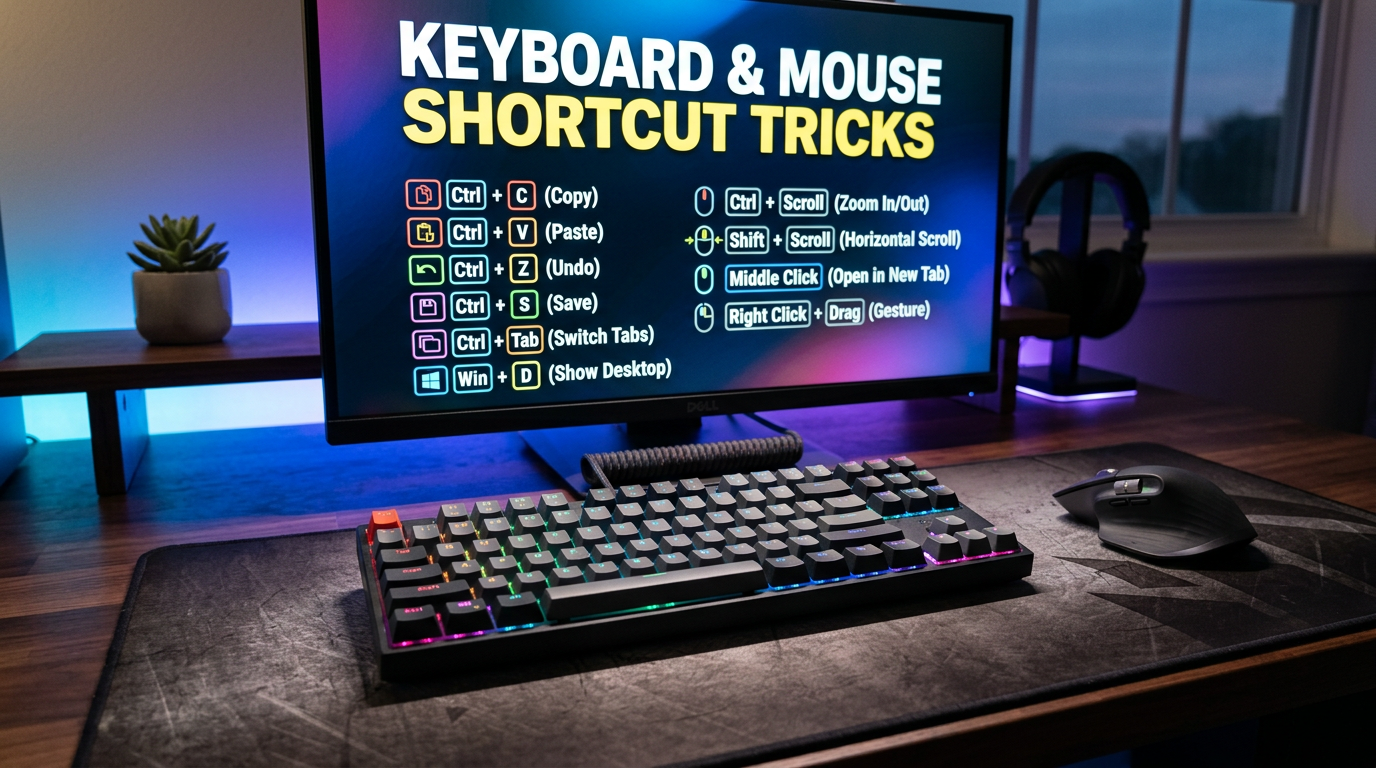
Become a local computer wizard! Learning when to use computer tricks feels like discovering secret doors in a familiar house — suddenly everything you do becomes faster, smoother, and a little bit magical. It’s the joy of realizing your devices can do far more than you initially asked of it: hidden shortcuts that slice tasks in half, clever ways that automate the boring stuff, tiny hacks that make you feel like a digital wizard. Each trick is a small superpower — the kind that turns everyday clicking and typing into a playful, efficient dance. And once you start collecting them, you don’t just use your computer anymore… you command it.
School / Work Quick Chart Version
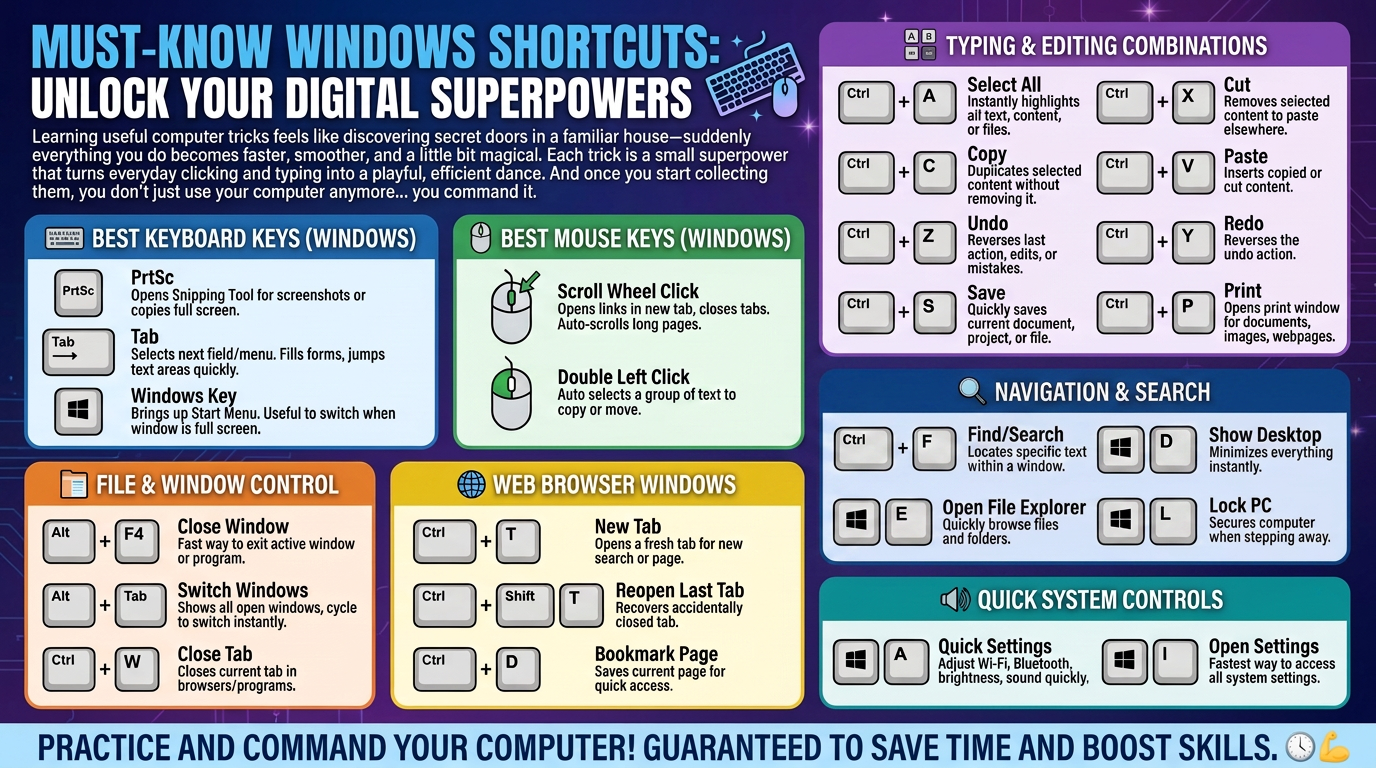
Chart created by Sunday Ideas > Download/View Full Resolution
Themed Quick Chart Version
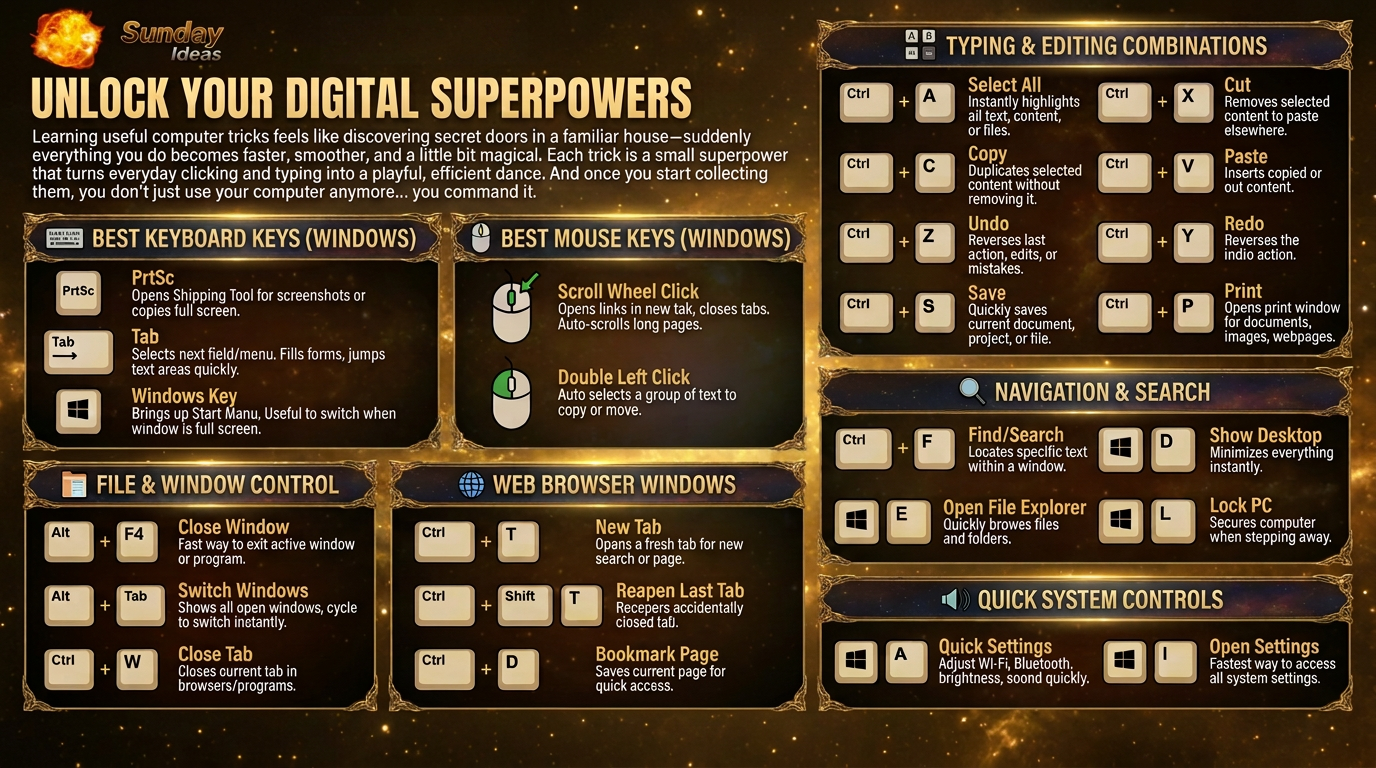
Themed chart created by Sunday Ideas > Download/View Full Resolution
Read the below full descriptions! Practice and improve your use of them!
The following list covers all of the “Must-know” keyboard & mouse shortcuts in detail, only the best!
They will save you time, help with situations, and strengthen your computer skills overall, guaranteed!
⌨️ Best Keyboard Keys (Windows)
- PrtSc — Opens the Snipping Tool in modern Windows to take a screenshot or copies the entire screen on older versions so you can paste it into Paint.
- Tab — Selects the next field or menu. Great for quickly filling forms or jumping between text areas without using the mouse.
- Windows Key — Brings up the Start Menu. Very useful to switch windows when another window is full screen blocking the taskbar.
🖱️ Best Mouse Keys (Windows)
- Scroll Wheel Click — Opens links in a new tab in browsers, closes tabs when clicked on them. Also useful for auto‑scrolling long pages.
- Double Left Click — Best used within any window/program containing text – Will auto select a group of text, to copy or move.
🔤 Keyboard Key Combinations – Typing & Editing:
- Ctrl + A — Select all. Instantly highlights all text, content, or files in a window so you can copy, move, or delete everything at once.
- Ctrl + X — Cut. Select text or highlight content first, then cut it to remove it from its current spot and paste it somewhere else.
- Ctrl + C — Copy. Select text or highlight content first, then copy it without removing it. Perfect for duplicating anything.
- Ctrl + V — Paste. Used after copying or cutting. Also works with anything copied using the mouse right‑click menu.
- Ctrl + Z — Undo. Reverses your last action — text edits, picture changes, file moves, and most mistakes in programs or documents.
- Ctrl + Y — Redo. Reverses the undo if you change your mind again.
- Ctrl + S — Save. Quickly saves your current document, project, or file. Use often to avoid losing work.
- Ctrl + P — Print. Opens the print window for documents, images, or webpages.
🗂️ File & Window Control
- Alt + F4 — Closes the active window. Fast way to exit programs without using the mouse.
- Alt + Tab — Shows all open windows. Press Tab again to cycle through them and switch instantly.
- Ctrl + W — Closes the current tab in browsers or programs with tabbed interfaces.
🌐 Web Browser Windows
- Ctrl + T — Opens a new tab. Great for starting a fresh search or page without losing your current one.
- Ctrl + Shift + T — Reopens the last closed tab. Perfect for recovering a tab you closed by accident.
- Ctrl + D — Bookmarks the current page. Saves it for quick access later.
🔍 Navigation & Search
- Ctrl + F — Find/search within a window. Locates specific words or phrases in documents, webpages, and most programs.
- Windows Key — Opens the Start Menu. Useful for launching apps, searching your PC, or switching tasks.
- Windows + E — Opens File Explorer. Quick way to browse files and folders.
- Windows + D — Shows the desktop. Minimizes everything instantly so you can access desktop files.
- Windows + L — Locks your PC. Use when stepping away to keep your computer secure.
🔊 Quick System Controls
- Windows + A — Opens Quick Settings. Used to adjust Wi‑Fi, Bluetooth, brightness, and sound quickly.
- Windows + I — Opens Settings. Fastest way to access all system settings without navigating menus.